

YouTube is an endless ocean of video content, spanning entertainment, education, news, and everything in between. Navigating this vast library and extracting valuable information can sometimes feel overwhelming. Enter Gemini, Google’s powerful and versatile AI assistant. While direct, deep integration within the main YouTube app is still evolving, you can already leverage Gemini alongside YouTube in numerous ways to enhance your viewing, learning, and even content creation experience.
This guide will explore the powerful synergy between Gemini and YouTube, covering practical use cases, step-by-step instructions, and tips to get the most out of this combination. Whether you’re a casual viewer, a dedicated learner, or a content creator, Gemini can transform how you interact with YouTube.
Understanding the Connection: Gemini Extensions & Capabilities
The primary way Gemini interacts directly with YouTube services currently is through Gemini Extensions. These are integrations you can enable within your Gemini settings (accessible via the Gemini app on mobile or the web interface at gemini.google.com).
- Enabling Extensions:
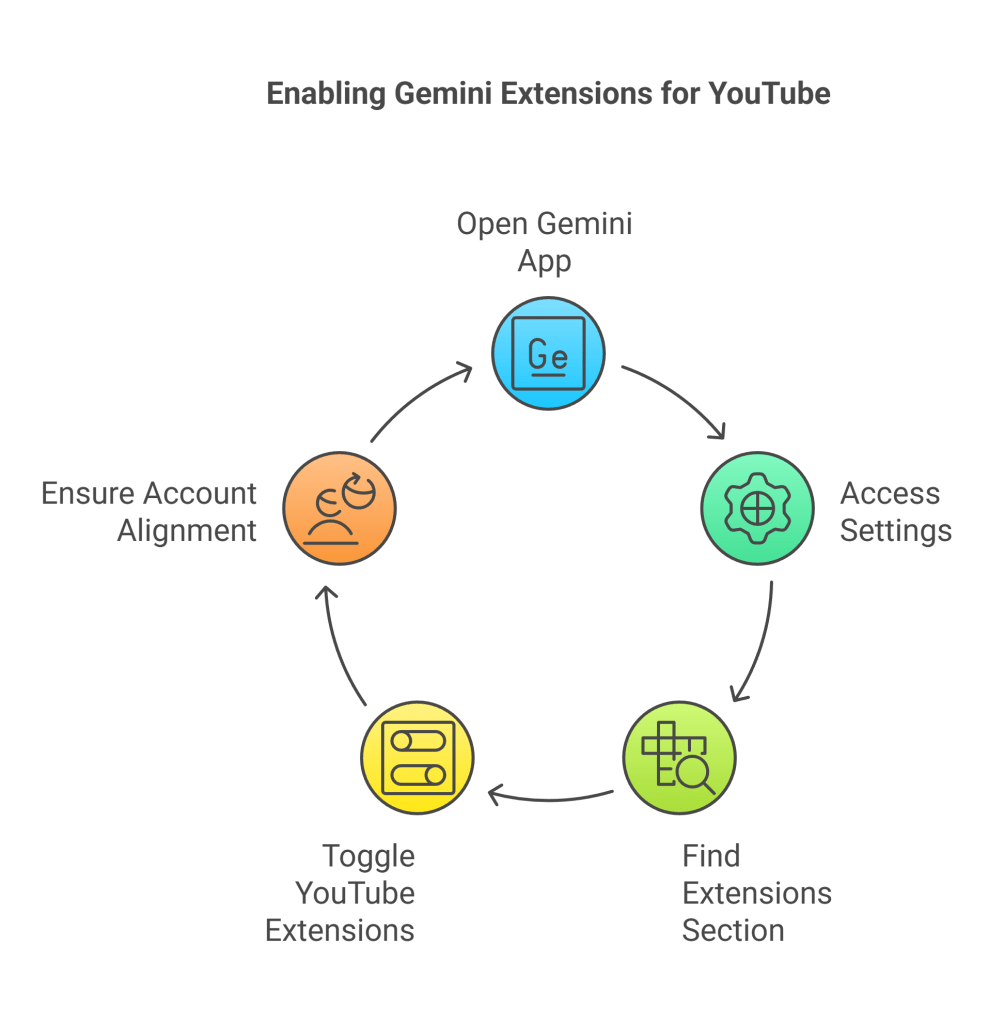
- Open the Gemini app or navigate to the Gemini website.
- Access your settings (usually via your profile picture or a menu icon).
- Find the “Extensions” section.
- Locate the “YouTube” and “YouTube Music” extensions.
- Toggle them on (ensure they are blue or indicate an active state).
- Note: You’ll need to be logged into the same Google account for both Gemini and YouTube/YouTube Music for seamless integration. Extensions are gradually rolling out and might not be available in all regions or languages yet.
Enabling these extensions allows Gemini to perform specific tasks related to YouTube content when prompted.
Key Use Cases: How Gemini Enhances Your YouTube Journey
Let’s dive into the practical ways Gemini can revolutionize your YouTube usage:
1. Summarizing YouTube Videos: Understand Content Faster
This is arguably one of the most powerful current integrations. Instead of spending minutes or hours watching a lengthy video to grasp its core message or find specific information, Gemini can provide concise summaries.
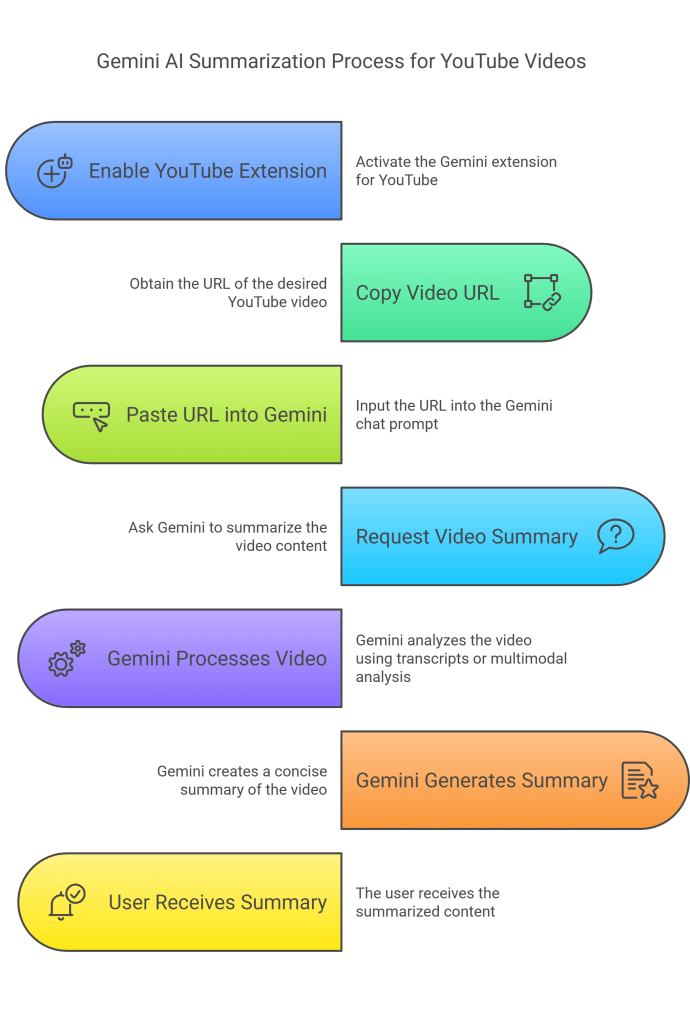
- How it Works: Once the YouTube extension is enabled, simply copy the URL (web address) of the YouTube video you’re interested in. Paste this URL into the Gemini chat prompt and ask it to summarize the video (e.g., “Summarize this video,” “What are the key points of this YouTube video?”, “Give me a brief overview of this content”).
- Mechanism: Gemini primarily uses automatically generated text like captions and transcripts associated with the video to create these summaries. For some videos, especially with newer Gemini models (like Gemini 1.5 Pro/Flash), it might leverage more advanced multimodal capabilities to analyze the video/audio content directly.
- Limitations:
- Transcript Dependency: If a video lacks captions or a transcript, Gemini may struggle to provide an accurate summary based solely on the URL.
- Language Support: Currently, direct URL-based summarization often works best for videos in major languages like English, Japanese, and Korean, though capabilities are expanding.
- Video Length: While newer models can handle longer videos (potentially up to 2 hours), extremely long content might exceed processing limits.
- Benefits: Quickly understand lectures, tutorials, reviews, news segments, or presentations without watching the entire duration. Ideal for research, catching up on missed content, or deciding if a video is worth watching fully.
2. Advanced Video Analysis & Information Extraction
Beyond simple summarization, Gemini’s multimodal capabilities (especially via advanced models accessible through tools like Vertex AI or potentially future Gemini Advanced tiers) can perform deeper analysis:
- Structured Data Extraction: Ask Gemini to pull specific information from a video in a structured format. For example, analyzing a keynote video: “Extract the biggest product announcements from this video, including the product name and its status.”
- Analyzing Multiple Videos: You can feed Gemini links to multiple videos (e.g., a playlist or a list of URLs) and ask it to synthesize information or find patterns across them. Example: “Analyze these ‘Year in Search’ videos and list which athletes or teams appear most often, including the timestamp.”
- Visual Content Understanding: Gemini can analyze visual elements within frames, not just the audio transcript.
3. Enhanced Content Discovery & Recommendations
Tired of generic recommendations? Use Gemini’s conversational power to find precisely what you’re looking for.
- Specific Queries: Instead of typing keywords into the Youtube bar, ask Gemini complex questions like:
- “Find YouTube tutorials on building a raised garden bed suitable for beginners, focusing on using recycled materials.”
- “Recommend YouTube channels that review independent sci-fi films released in the last two years.”
- “Show me YouTube videos explaining the concept of blockchain, but assume I have no prior technical knowledge.”
- Using the @YouTube Tag: While not always necessary, you can sometimes guide Gemini by using
@YouTubein your prompt, like:@YouTube Find relaxing ambient music channels suitable for studying. - Leveraging Google Search: Gemini is grounded in Google Search, allowing it to tap into broader web knowledge to find relevant YouTube content based on your nuanced requests.
4. Powering Content Creation (For YouTube Creators)
Gemini is rapidly becoming an invaluable assistant for YouTube creators:
- Brainstorming Ideas: Feeling stuck? Ask Gemini for video ideas related to your channel’s niche or current trends. E.g., “Give me 10 video ideas for a channel about sustainable living in urban environments,” or “What are trending topics related to drone photography right now?”
- “Brainstorm with Gemini” (Experimental): YouTube is testing a feature directly within YouTube Studio’s “Research” tab called “Brainstorm with Gemini.” This tool uses insights from Google Search activity to suggest concepts, trends, and even thumbnail ideas relevant to a creator’s audience. Keep an eye out for this if you’re a creator!
- Scripting & Outlining: Provide Gemini with a video topic or outline, and ask it to flesh out a script, write specific sections, or create a detailed structure. “Write a script outline for a video comparing the top 3 budget smartphones of 2025.”
- Titles & Descriptions: Generate catchy, SEO-friendly video titles and detailed descriptions. “Suggest 5 engaging titles for a video about making sourdough bread at home.” “Write a YouTube description for a travel vlog about exploring Kyoto, mentioning key locations like Fushimi Inari and Arashiyama Bamboo Grove, and include relevant hashtags.”
- Tag Generation: Get suggestions for relevant tags to improve discoverability. “Suggest relevant YouTube tags for a video reviewing the latest MacBook Pro.”
- Repurposing Content: Turn your video content into other formats. “Summarize my latest video [provide transcript or summary] into a blog post.” “Create 3 social media posts based on the key takeaways from this video [link/summary].”
- Comment Generation (Conceptual/External Tools): While Gemini itself doesn’t manage your comments, API integrations (like the “My Content Creator” project showcased in the Gemini Developer Competition) demonstrate how AI can analyze video data and existing comments to help generate engaging replies.
- Google Vids Integration: For those using Google Workspace, Google Vids integrates Gemini to help create video storyboards, suggest scenes, stock media, and even generate scripts from a simple prompt or document, streamlining the pre-production process for videos ultimately destined for YouTube.
5. YouTube Music Control
If you use YouTube Music, the Gemini extension offers convenient voice or text control:
- Playing Music: “Play workout music on YouTube Music.” “Play the latest album by [Artist Name] on YouTube Music.”
- Finding Music: “Find the song ‘Bohemian Rhapsody’ on YouTube Music.” “Show me playlists for focus and concentration on YouTube Music.”
- Creating Radios/Playlists: “Create a YouTube Music radio based on the song ‘[Song Title]’.” “Make a YouTube Music playlist with upbeat indie pop.”
- Mobile Assistant: If you use Gemini as your primary mobile assistant on Android, you can control playback (“Pause music,” “Next song”) for YouTube Music playing in the background (especially with a Premium subscription).
6. Learning and Research Companion
Combine YouTube’s visual learning power with Gemini’s analytical capabilities:
- Deep Dives: Watch an educational video and ask Gemini follow-up questions about complex topics mentioned. “This video mentioned quantum entanglement. Can you explain that concept in simpler terms?”
- Fact-Checking & Comparison: Watched multiple videos on a historical event? Ask Gemini to compare the perspectives or highlight key differences in their accounts (provide links or summaries).
- Finding Supplementary Resources: “This video explains photosynthesis. Can you find me related articles or diagrams that explain the Calvin Cycle in more detail?”
How to Use Gemini Alongside YouTube Apps: Practical Steps
- Side-by-Side (Desktop): Open the YouTube website in one browser tab or window and the Gemini web interface (gemini.google.com) in another. Copy URLs or text between them.
- App Switching (Mobile): Use the YouTube app and the Gemini app (available on Android, accessible via the Google app on iOS). Switch between apps, copying video URLs from YouTube (via the ‘Share’ button > ‘Copy link’) and pasting them into Gemini.
- Voice Commands (Mobile Assistant): If Gemini is set as your default assistant on Android, you can use voice prompts for tasks like controlling YouTube Music playback.
- Copy & Paste: This is the most common method for summarization and analysis. Copy the video URL from YouTube and paste it into the Gemini prompt field with your request.
- Automation Tools (Advanced): Platforms like Zapier and Make offer integrations (sometimes labelled “Google AI Studio (Gemini)” or “Google Gemini AI”) that allow you to connect YouTube triggers (like a new video upload) to Gemini actions (like generating a summary or description) and send the results elsewhere (like email or Google Sheets). This requires setting up specific workflows.
Tips for Getting the Most Out of Gemini and YouTube

- Be Specific: Clearly state what you want Gemini to do (summarize, analyze, find, create, list). Provide context like the video URL or detailed search criteria.
- Enable Extensions: Ensure the YouTube and YouTube Music extensions are active in your Gemini settings for direct integration features.
- Iterate and Refine: If the first response isn’t perfect, refine your prompt. Ask follow-up questions.
- Verify Critical Information: AI is powerful but not infallible. Especially for factual information or complex topics derived from summaries, cross-reference with reliable sources if accuracy is crucial.
- Understand Limitations: Be aware of potential limitations like language support, reliance on transcripts for basic summaries, and processing limits for very long videos.
- Consider YouTube Premium: An ad-free experience and background play make switching between YouTube and Gemini smoother, especially on mobile.
The Future of AI and YouTube
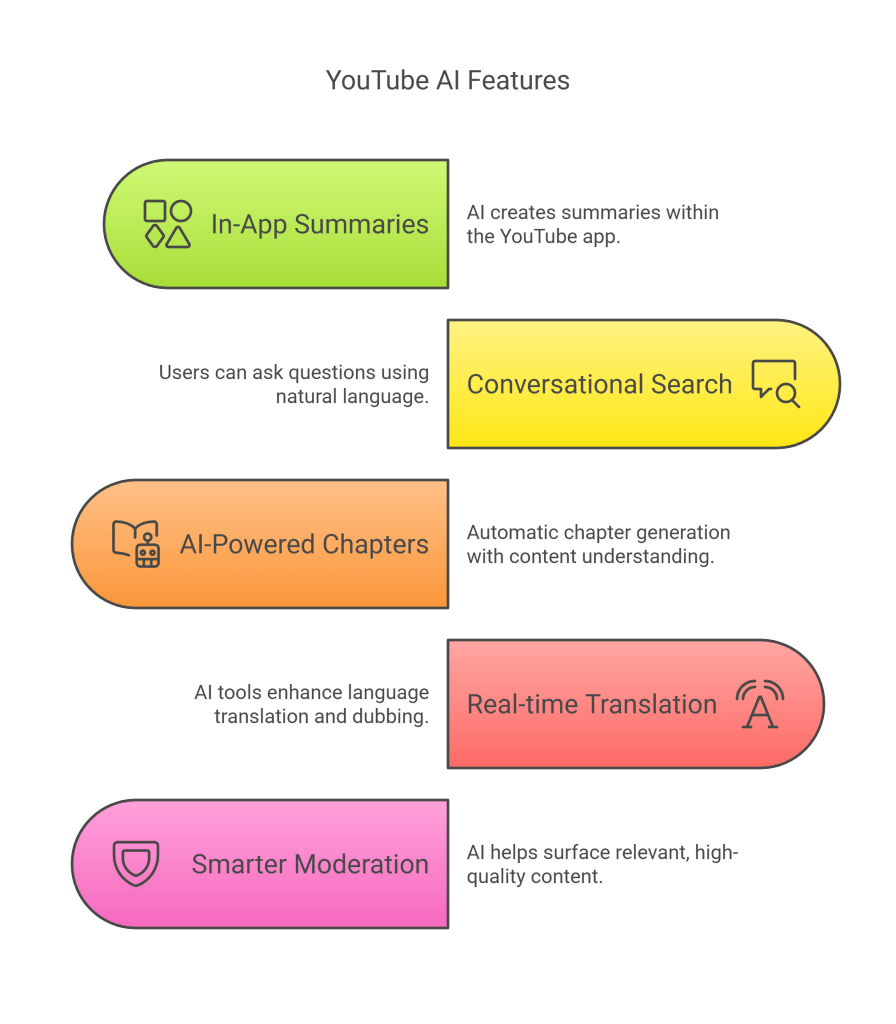
The synergy between AI like Gemini and platforms like YouTube is only just beginning. We can anticipate deeper, more seamless integrations in the future:
- In-App Summaries: AI-generated summaries or key moments highlighted directly within the YouTube interface.
- Conversational Search: Ask questions directly within the Youtube bar using natural language, powered by Gemini.
- AI-Powered Chapters: More sophisticated automatic chapter generation based on content understanding.
- Real-time Translation & Dubbing: Enhanced AI-powered tools for overcoming language barriers.
- Smarter Content Moderation & Discovery: AI helping surface relevant, high-quality content more effectively.
Conclusion
Gemini AI offers a suite of powerful tools that can significantly enhance how you interact with YouTube. From saving time with video summaries and discovering content more effectively to streamlining the creative process for YouTubers, the possibilities are vast and growing. By understanding the current capabilities, enabling the necessary extensions, and crafting specific prompts, you can unlock a more productive, insightful, and personalized YouTube experience. Start experimenting today and see how Gemini can become your indispensable YouTube companion.
Discover more from SkillWisor
Subscribe to get the latest posts sent to your email.
 SkillWisor